We generally recommend contacting the PaperOffice support team to resolve the issue through our free installation service via phone and Teamviewer.
Open your browser and go to the website http://www.paperoffice.com.
Now click on "Download and test". This redirects you to the download page where you will scroll down a bit and encounter the necessary installers. Click on "Download."
Now wait for the download to complete.
Once the download has completed, open the download folder and double click on the exe file.
Confirm the next dialog with Yes. Close the folder and minimize the browser.
The installation wizard opens. As you can see, you'll find new video tutorials and workshops on our YouTube channel.
Now click "Next" to continue.

Please note the installation instructions below and after the installation add the installation folder to the virus scanner exclusion list. In 90% of all cases, antivirus systems are the cause, they block important PaperOffice components and thus prevent smooth functionality.
It is therefore very important to add the PaperOffice folder to your exclusion list after installation. The following steps also describe how to do this easily.
In the next step, select the language and continue by clicking on "Next".
PaperOffice now installs and downloads the required files. This may take a while depending on your internet connection. Meanwhile, you can familiarize yourself with the program by clicking on the arrow to switch slides.

During the installation, you will be presented with a confirmation prompt, which you should confirm with "Install". This security query integrates PaperOffice into your office so you can easily save it directly to PaperOffice via Word, Excel and Outlook.
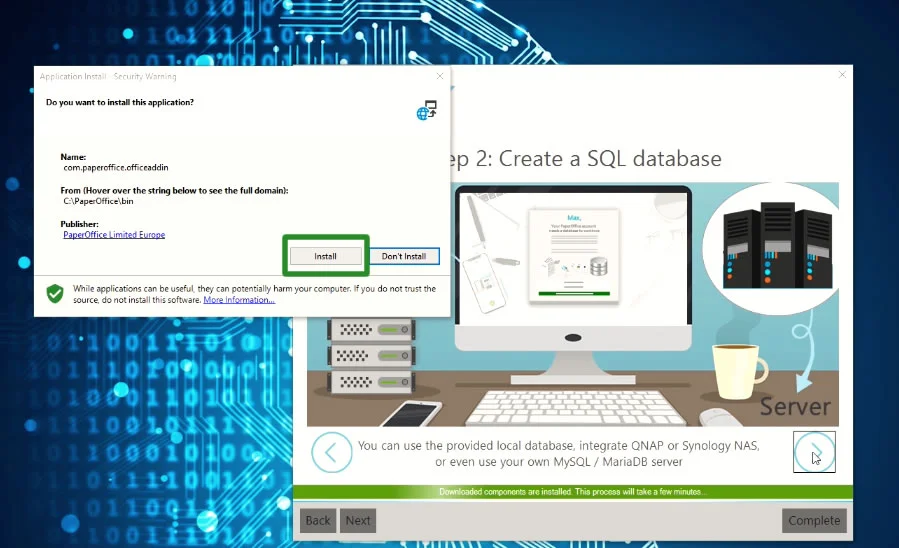
The installation process is completed when the "Complete" button has changed to "green".
IMPORTANT!Before you launch PaperOffice for the first time, you must add the PaperOffice installation folder to the antivirus exclusion list, as mentioned earlier.
We strongly recommend using the Windows Defender antivirus system built into Windows. 90% of potential malfunctions come from third-party antivirus programs. Please also note that antivirus programs can block components and modules even while disabled.
The following instructions are for adding the PaperOffice installation folder to the antivirus exclusion list of the manufacturer Windows Defender. The instructions explicitly for your anti-virus manufacturer can be found on the appropriate page of the provider, contact if necessary the support of the anti-virus manufacturer.
To add the PaperOffice installation folder to the exclusion list, click on the Windows Defender icon, then on "Virus & threat protection", "Manage settings" and scroll down to the point "Exclusions". Then click on "Add or remove exclusions".
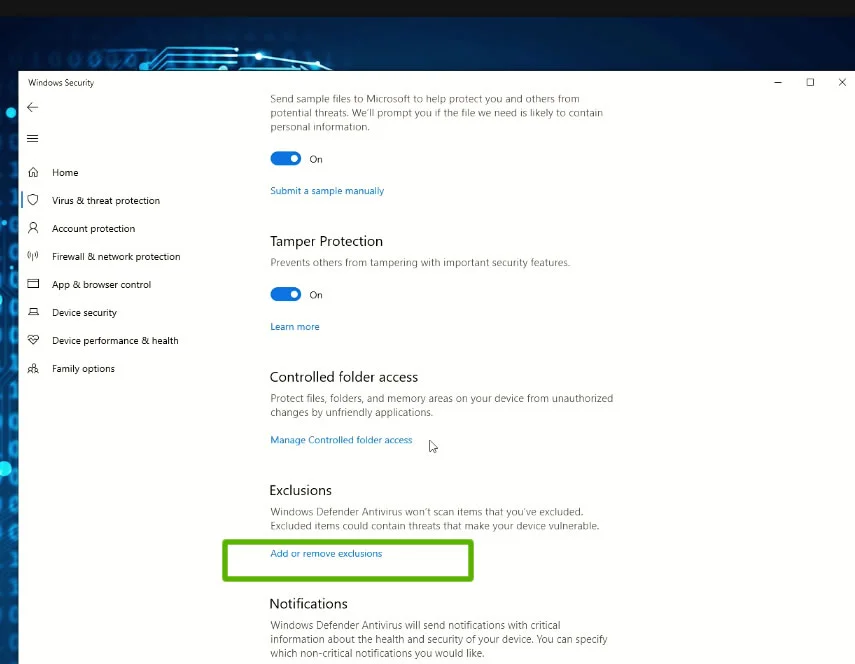
Search now in the directory “C” for the folder "PaperOffice", click on it and confirm the selection with „Select Folder“. Then confirm the confirmation prompt with Yes.
Only after PaperOffice has been added to the exclusion list can it be started for the first time. Double-click on the PaperOffice icon to start the program.
CREATE NEW USER ACCOUNTIf you are using PaperOffice for the first time and do not yet have a user account, you must first create a new user account. If you already have a user account, just log in with your details.
Now fill in the necessary information, such as name and e-mail address. It is important that you do not use a disposable e-mail address - the e-mail address you entered and your password will be needed later for the login. Please note both entries.
In order to know how you became aware of PaperOffice, we ask you to select an entry from the list or to type in your own. Then click on "Create and continue".
Your user account has now been created. You will be redirected to the login area, where your credentials from the previous step are already entered.
Now click on “Continue” to start PaperOffice.
DEVICE NAMEThe next step is to name your current device. Enter any name and select any symbol.
Click "Continue".
If you need help with the installation, we offer a free installation support. Click on the "Request" button.
SET UP DATABASEIn the next step, the database is determined. PaperOffice stores all documents and information centrally in this database.
If you want to connect to an external database connection, such as a NAS or server, or reconnect to an existing database, click the "Start Database Manager" button.
Our current guide is about creating a new local database. Click on the green button labeled "Express Setup".
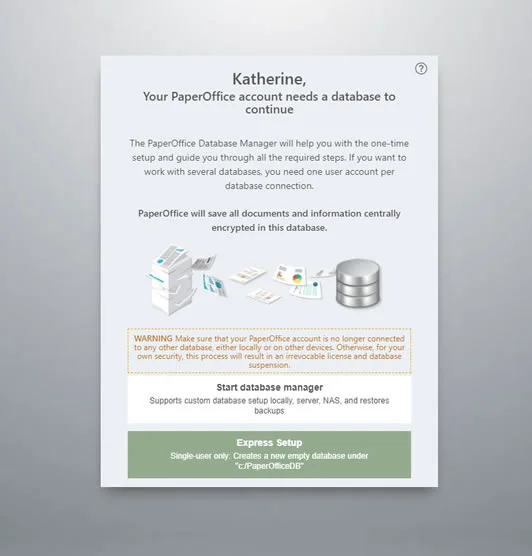
PaperOffice now creates the new database. Please wait until it is completed.
Information: All added documents are stored in highly encrypted form in the central digital database. This database receives a unique MasterKey that conforms to the zero-knowledge technology guidelines.
Without this MasterKey your database can not be accessed. Only you own this MasterKey, which is generated once each database creation. You should keep it carefully and not pass it on to third parties.
After both the certificate and the key have been created, store individual parts of this MasterKey in a safe place, such as USB stick for example.
If it happens that the connection to this database is disconnected and then needs to be rebuilt, you need this MasterKey.
Now click "Everything ready :) Now we can proceed"
Now everything was prepared: the user account was created, the database added, and MasterKeys safely saved. You can log in now.
License information:
If you test PaperOffice, a 14-day trial license will be activated from the time you create a new user account.
If you have already purchased PaperOffice, you do not need to activate a license or enter the serial number; from the moment you enter your user information, PaperOffice automatically determines which license type you already own.
Now click on „Continue“.
FIRST LOGINThe green lock during initialization means that the connection to your database has been successfully established. You can always silence the melody by clicking on the lower right speaker icon.
Now click on "OK" if you want to use the European date format, click on "Cancel" uses the American date format.
This setting can also be changed later in your personal settings.
PaperOffice now loads the interface.
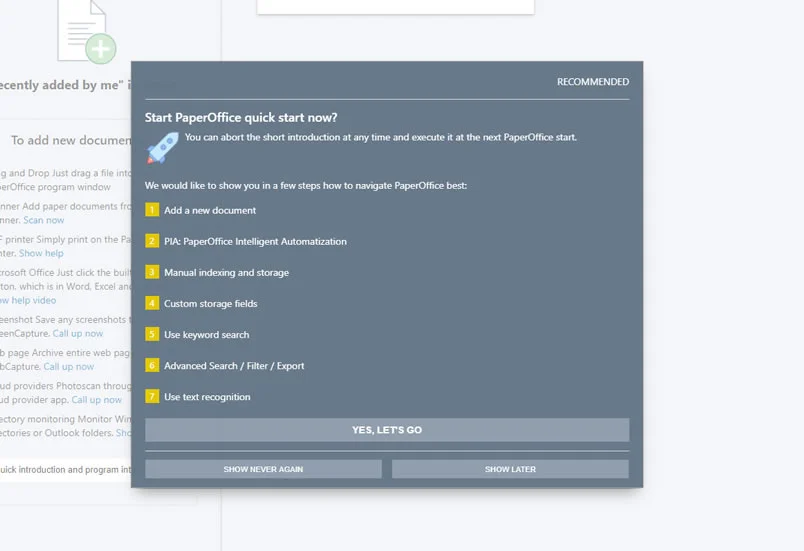
Click on "Yes, let's go" to start the short introduction.
The next steps will show you how the PaperOffice interface is laid out. Click through the steps or instructions by clicking "Continue".
If you need a free PaperOffice presentation, you can request it here by clicking the appropriate button.
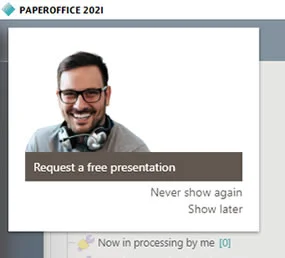
A PaperOffice representative will be happy to contact you to confirm the date you requested or offer an alternative date.
This completes the installation and introduction.