The comprehensive PaperOffice calendar view management shows you important date-related documents and events at a glance.
You can link as many documents as you want with events, which then appear directly in the appointment and follow-up management.
They also support filter settings, due dates and completion, keywords and status.
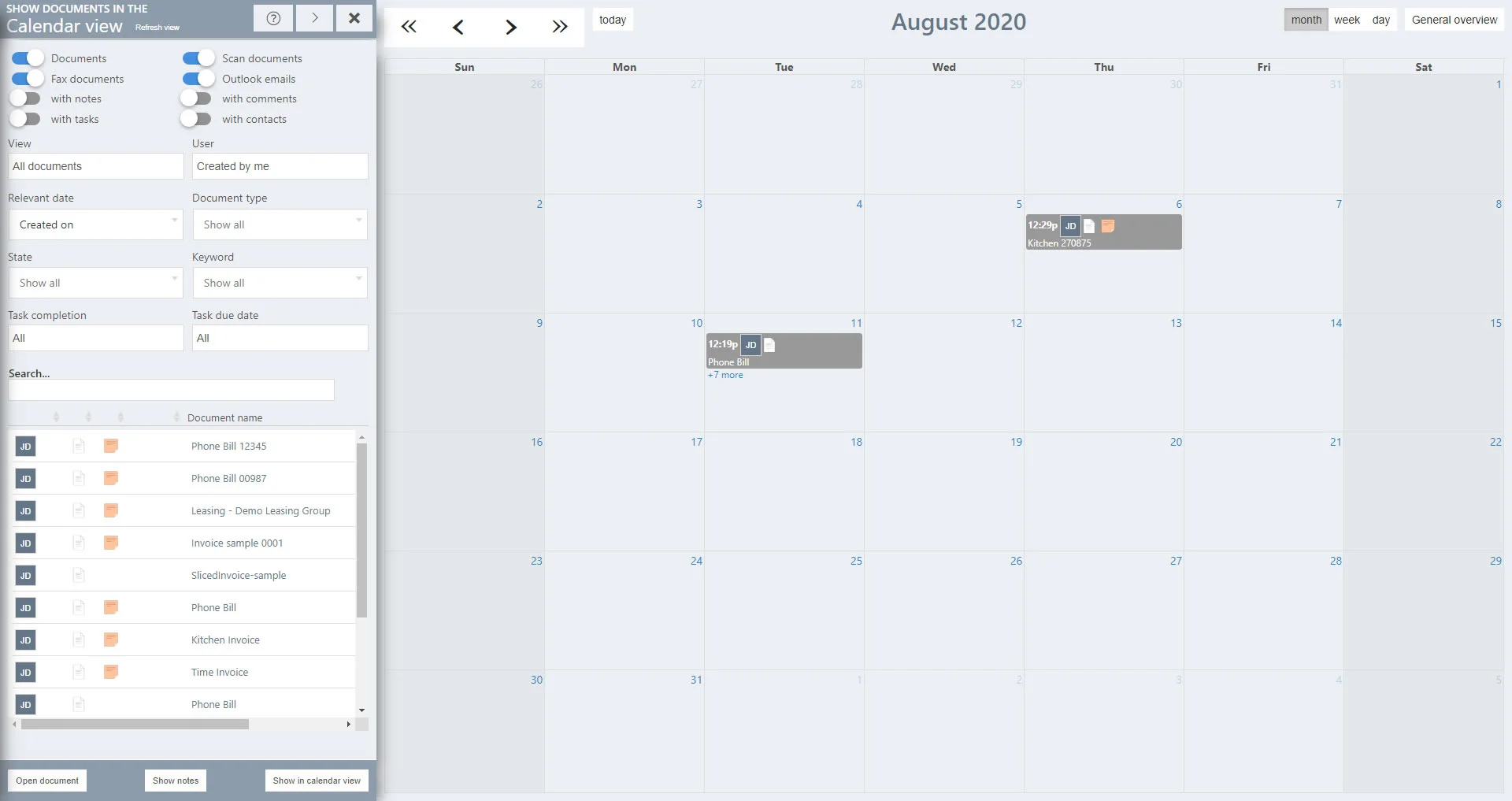
The calendar view mirrors all documents and files from the central PaperOffice database, which means that all users have local and network-wide access to them. This makes teamwork child's play to transparently control documents according to their deadlines.
In the PaperOffice calendar view, the right view and the lower list refer to documents and emails and not to events. Those documents and emails are displayed and listed which correspond to the filter settings.
Calendar top bar view
Clicking the "Refresh view" button updates the calendar view.

Clicking on the question mark symbol opens the corresponding HelpDesk entry.
Clicking on the arrow opens the administration calendar view in an enlarged view.
Filter settings in the calendar view
Option fields
The document list below shows all the documents in your database. The view can be filtered, so you can choose between "scan documents, documents, fax documents and Outlook emails" and even only display those that are "with notes, with comments, with tasks or with contacts".
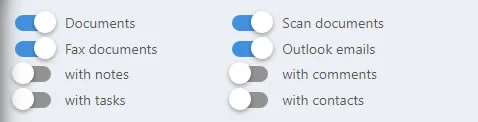
Left click in the option field - the background color changes to blue. This activates the filter setting for the calendar view. Thus, the entries of the corresponding document type (document or email) are displayed in the lower document list with or without notes / tasks / comments / contacts.
View
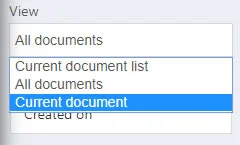
You can also filter the lower document list live by clicking in the selection list.
By clicking on the "Current document list" entry - all documents are displayed in the lower list, which are visible in the main view in the document list.
Click on "All documents" - lists all existing documents.
And "Current document" - accordingly lists the document currently visible in the main view.
User
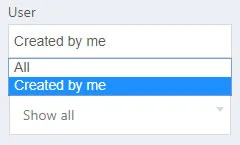
You can also filter the lower document list live by clicking in the selection list.
By clicking on the "All" entry - all documents are displayed in the lower list that have been archived by all users in your network.
Click on "Created by me" - in the lower document list only those documents are listed which have been added by you.
Relevant date
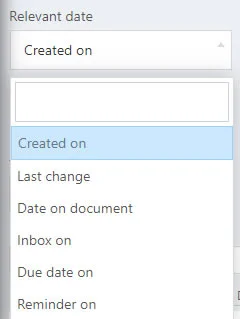
You can also filter the lower document list live by clicking in the selection list.
By clicking on one of the entries, the corresponding documents are listed which correspond to the filter setting. Select under "Created on", "Last change", "Date on document", "Inbox on", "Due date" and "Resubmission on".
Document type
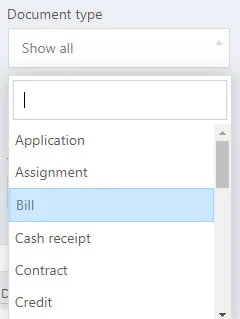
A document type can optionally be assigned to each document. This can be selected in the current selection list - accordingly only those documents are listed that correspond to this document type.
State
A document status can optionally be assigned to each document. This can be selected in the current selection list - accordingly only those documents are listed which correspond to this status.
Keyword
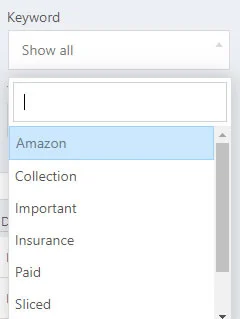
A keyword can optionally be assigned to each document. This can be selected in the current selection list - accordingly only those documents are listed which correspond to this keyword.
Task completion
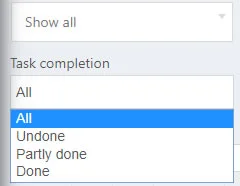
In PaperOffice you can assign tasks to the documents which have to be done by one or more users. You can also make this filter setting in the calendar view by selecting an entry.
By clicking on the entry "All" - all documents are displayed in the lower list that have been archived by all users in your network, regardless of whether the documents have assigned tasks.
Click on "Undone" - only lists those documents in the lower document list that have been assigned a task and this task has not yet been completed.
Click on "Partly done" - only lists those documents in the lower document list that have been assigned a task that has to be completed by several people and this task has already been completed by one person.
Click on "Done" - only lists those documents in the lower document list which have been assigned a task and which has already been completed.
Search
To search explicitly for documents within the calendar view, enter the search term in the corresponding field - the document list is searched live and shows you the results immediately.
Display the entry
Click on a document entry to perform the following functions:
Open document: Clicking on "Open document" opens the document you have just selected and displays it in the main view.
Show notes: The button appears after you have clicked on a document in the document list that has a note. Clicking on "Show Notes" opens the document in the main view and displays the relevant note.
Show in calendar view: Clicking on "Show in calendar view" updates the right calendar preview, jumps to the day / month / year and displays the document. It is also relevant which setting you made as "Relevant Date".
Calendar preview
The calendar preview lists all document entries.
Any number of documents can be displayed in calendar form. Every document entry, whether local or network-wide, is displayed in the calendar.
Arrow symbols:

The various arrow symbols in the calendar view help you to change the calendar view quickly.
Clicking on the double arrow on the left will display the view one year back.
If you click on the second arrow from the left, the view changes one month back, one week back or one day back, depending on the display mode.
Clicking on the third arrow from the left changes the view accordingly, depending on the display mode, one month forward, one week forward or one day forward.
Clicking on “Today” shows today's day in the calendar view.
Display modes:
The PaperOffice calendar view supports four different display modes: by month, week, day and the general overview. The general overview shows a list of all document entries grouped by date.
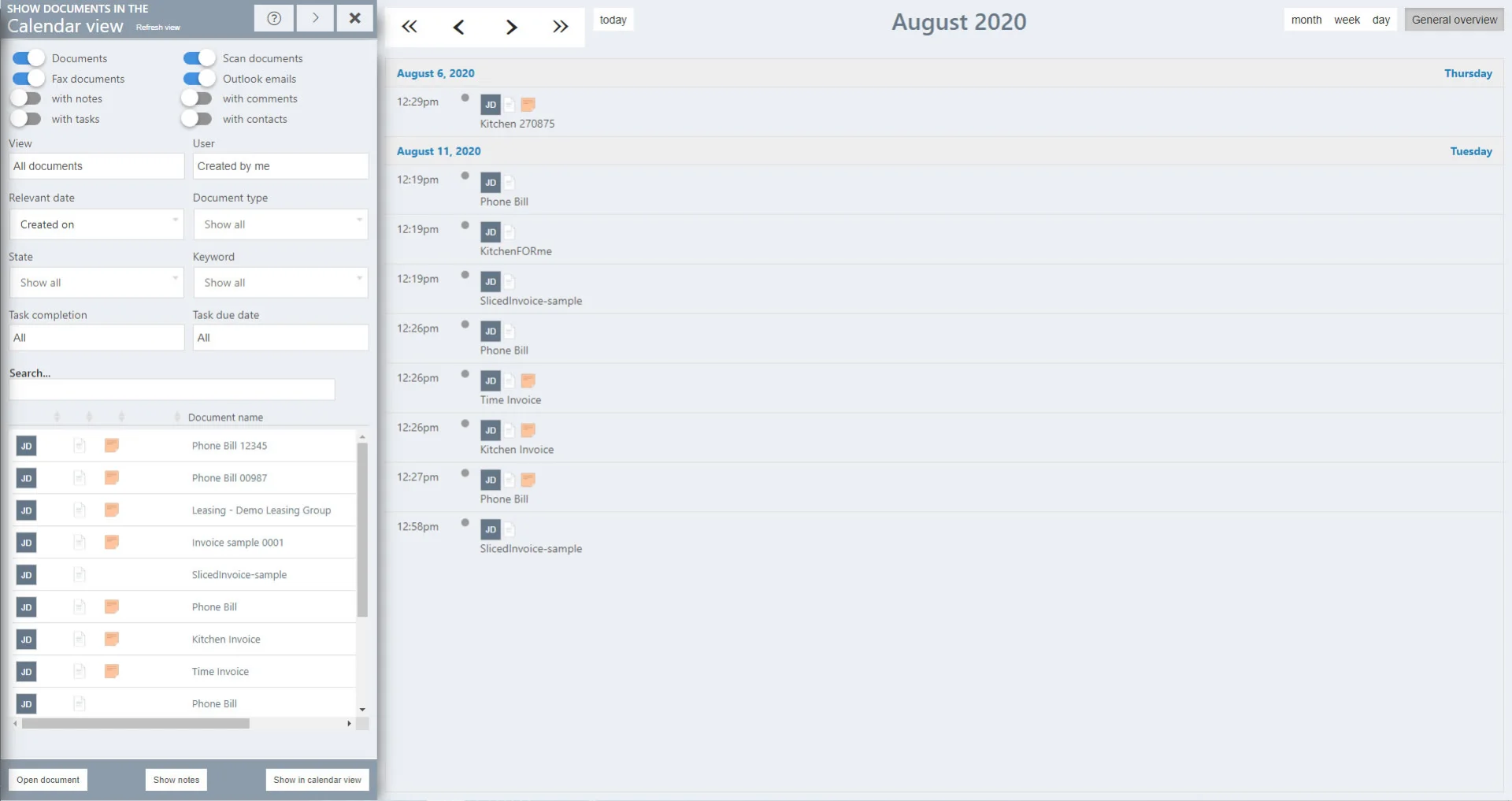
Click on one of the different display options to update the calendar preview in real time.
Display the document
If you want to see the document in the main view, just click on one of the document entries in the calendar preview - the view changes from the calendar view to the main view.
You can return to the calendar view at any time by clicking on the top left menu button "Program modules" and then selecting "Calendar view".