Description
Documents that are printed on the virtual PaperOffice printer can be provided with control tags. The POJOB-JSON can also be base_64_encoded (UTF-8).
Control tags are removed from the new PDF document after extraction and obtain the POJOB-JSON format.
Functionality
<input type="text" value="PARAMETERS" readonly="" style="width: 400px;">
Check PaperOffice API JSON Parameters
Parameters inside the <input type="text" value="" readonly="" style="border: none;"> tags can't contain any tabs or new lines.
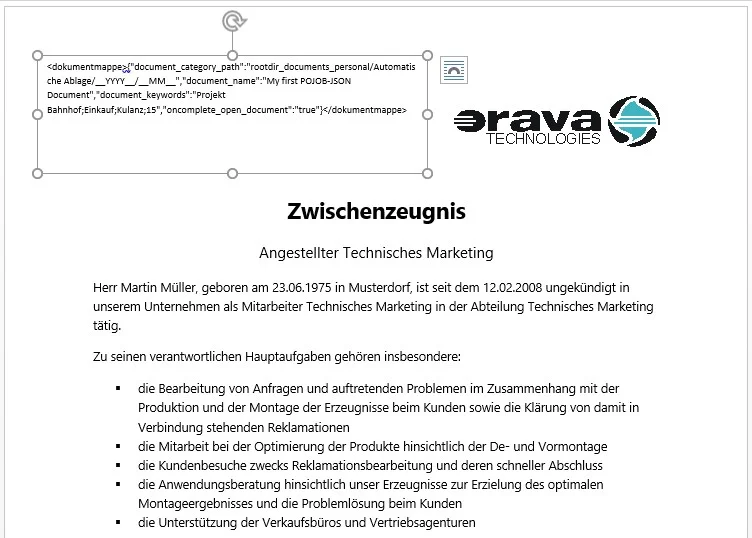
1. Insert tags
Insert the <input type="text" value="" readonly=""> Tags somewhere inside your document e.g a .docx file inside a Textfeld.
2. Printing on PaperOffice printer
Now print out your document with POJOB-JSON control tags with the PaperOffice printer.

3. Process and remove control tags
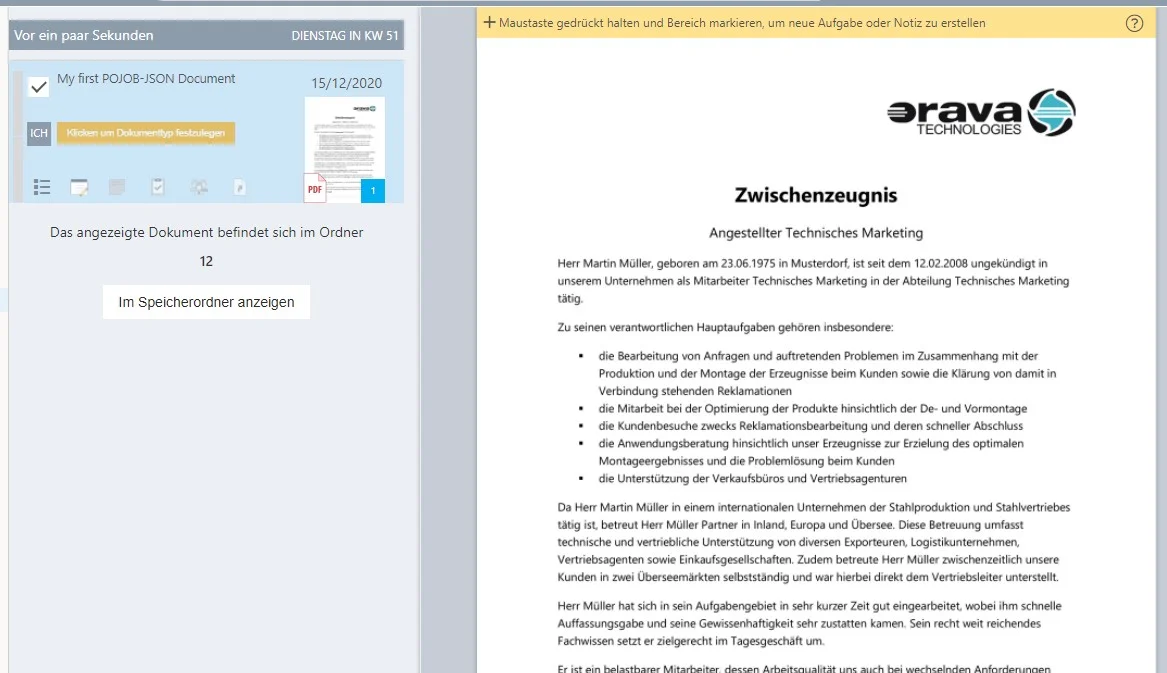
PaperOffice recognizes, extracts and processes all control tags. These are then removed from the new PDF document.

4. Finished! Document has been saved
PaperOffice saves your document fully automatically according to the specifications and removes the control tags from the PDF.
Example to incorporate
You can insert the following POJOB JSON into a Microsoft Word text field, and then simply print out the Word document on the PaperOffice printer.
PaperOffice will automatically save the document in accordance with all of the specified specifications.
<textarea rows="5" style="width: 100%;">{"document_category_path":"rootdir_documents_personal/Automatische Ablage/__YYYY__/__MM__","document_name":"My first POJOB-JSON Document","document_keywords":"Projekt Bahnhof;Einkauf;Kulanz","oncomplete_open_document":"true"}</textarea>Test samples
You will find the test files in DOCX format prepared with POJOB-JSON control tags in the PaperOffice installation directory under "/lib/POJOB-JSON sample files/de":
Control tags are removed from the new PDF document after extraction and obtain the POJOB-JSON format.
- /lib/POJOB-JSON sample files/de/Mein erstes PaperOffice Dokument mit POJOB-JSON.docx
1. Make sure you are logged in to PaperOffice.
2. Print the document on the "Realify PaperOffice" virtual printer.
PaperOffice will automatically save the document as a PDF document for long-term archiving (PDF / A) in accordance with all of the specified specifications and remove all POJOB-JSON control tags.